> ## Documentation Index
> Fetch the complete documentation index at: https://docs.usenotra.com/llms.txt
> Use this file to discover all available pages before exploring further.
# Featul (Community)
> Import Notra changelog content into Featul.
This integration is community-supported. We are not affiliated with Featul and do not provide official support for this integration.
This guide explains how to connect Notra to [Featul](https://www.featul.com/) and import changelog content.
## Prerequisites
* Access to a Featul workspace.
* A Notra Organization ID.
* A Notra API key.
## Connect Notra to Featul
1. In Featul, open the **Changelog** page.
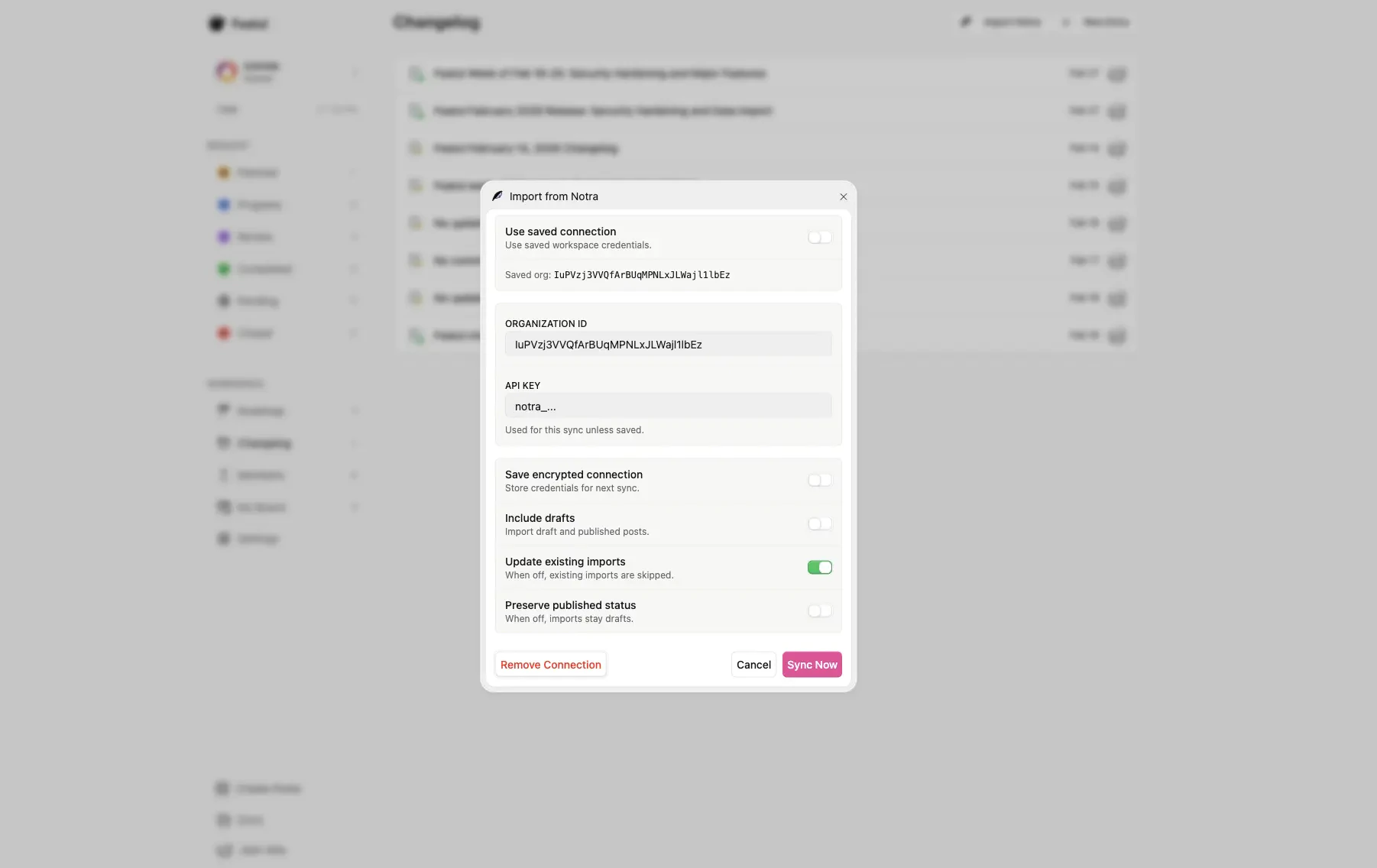
2. At the top of the page, click **Import from Notra**.
3. In the import dialog, enter your **Organization ID** and **API key** from Notra.
4. Optional: enable **Save encrypted connection** if you want Featul to reuse these credentials.
5. Click **Sync Now** to start the import.
 ### Where to find your Notra credentials
1. Open Notra and select your organization.
2. Copy the **Organization ID** from **Settings** > **General**.
3. Create an **API Key** under **Developer** > **API Keys**.
4. Return to Featul and paste both values into the **Import from Notra** dialog as seen above.
## Notes
You can import both draft and published content by enabling **Include drafts**.
You can update previously imported entries by enabling **Update existing imports**.
### Where to find your Notra credentials
1. Open Notra and select your organization.
2. Copy the **Organization ID** from **Settings** > **General**.
3. Create an **API Key** under **Developer** > **API Keys**.
4. Return to Featul and paste both values into the **Import from Notra** dialog as seen above.
## Notes
You can import both draft and published content by enabling **Include drafts**.
You can update previously imported entries by enabling **Update existing imports**.